
Lesson 2.2 · Install your tool
Where this gets you: the tool installed, you logged in, and a first real exchange with it. About ten minutes of work.
The idea
Everything in this course happens inside a terminal agent that can touch your actual files. We use Claude Code as the main path. Codex CLI, Gemini CLI, and Coco share the same habits with different commands and permission models.
Install once, log in once. After that you start it by typing one word inside any project.
Where the first session goes wrong is what you point it at. Open an empty folder, ask “what does this project do?”, and the agent says something plausible about the two config files it found. You have no idea if that’s good. Open a repo you wrote last year and ask the same thing, and within a paragraph you know: it named the actual entry point, or it confidently described a module you deleted. That’s the whole test. You can only judge an agent on code you already understand — so make your first exchange one you can grade.
Do it
Choose your track. Stay on one for the course unless you have a reason to switch.
| Track | Use when | Start command |
|---|---|---|
| Claude Code | You want the main course path | claude |
| Codex CLI | You want the OpenAI CLI path | codex |
| Gemini CLI | You want the Google CLI path | gemini |
| Snowflake Coco | Your team works inside Snowflake or a governed enterprise workspace | your approved Coco entry point |
The rest of this lesson uses Claude Code as the example.
Install it.
macOS, Linux, or WSL:
curl -fsSL https://claude.ai/install.sh | bash
Windows (PowerShell):
irm https://claude.ai/install.ps1 | iex
On a Mac, brew install --cask claude-code works too.
Check it landed. Before you open a project, confirm the tool is on your machine and on your PATH:
claude --version
which claude
claude --help
You should see something like this:
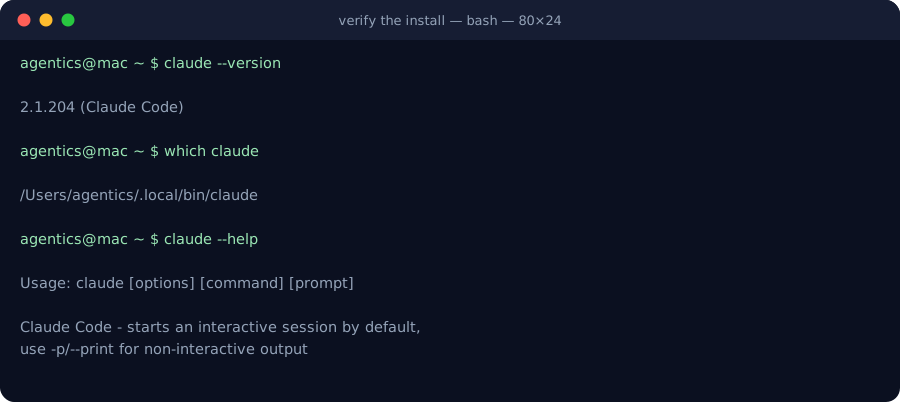
If which claude prints nothing, the install worked but your shell can’t find it — reopen the terminal, or add the install directory to your PATH.
Start it. Open a terminal, cd into a project you already have on your machine, and run:
claude
Keep this quick-start block handy during the workshop:
# move into a project you already understand
cd path/to/your-project

# start the primary course tool
claude

# first orientation prompt to paste into the agent
what does this project do?
Log in. The first run walks you through signing in.
Say something. When it’s ready, ask it a plain question:
what does this project do?
It reads the project and answers from the code. That’s a real agent session.
Using something else? Codex CLI: install from OpenAI’s developer site, run
codex. Gemini CLI: install it, rungemini. Coco: use your organization’s approved setup path. The habit is the same: start in the repo, sign in, ask it to orient on code you know.
For the full translation table, keep CLI variants open while you work.
Your exercise
Point the tool at a repo you know, not an empty folder. No repo yet? A class app, a portfolio project, or a sample CLI with fewer than ten files will do.
Ask it two things:
- What does this project do?
- Where would I add a new [something small. A route, a command, a config option]?
Use this starter if you want the low-friction path:
What does this project do?

Then answer this: where would I add a small route, command, or config option?
Read the repo first. If you are unsure, say what you checked and what you still need.
Read the answers like a reviewer. You know this code. Did it get it right?
You’re done when the tool is installed, you’re logged in, and you’ve had that two-question back-and-forth on a real repo.
Practice proof: paste the tool name, repo name, and the two answers into a NOTES.md file. Mark anything the agent got wrong.
Build on it: build a repo-orient shell script that drops you into the agent inside any repo you cd to and pastes the “what does this project do?” prompt for you, so orienting on unfamiliar code is one command.
Why this matters
You’ll live in this tool for the rest of the course. Get it working today, and watch it understand code you know, and every lesson after this starts from “this works” instead of “wait, is it broken?”
Previous: Lesson 2.1 · What is agentic engineering? · Next: Lesson 2.3 · Your first session